

How to Set Up a Google Drive Storage Integration
LaunchBrightly's Google Drive storage integration lets you automatically export your latest product screenshots to a Google Drive folder — making it easy to share always-up-to-date visuals with teams across your org.
Note
We only request access to a specific folder we manage for your screenshots. We don't have access to anything else in your Drive.
Navigate to Settings and click the Integrations tab.
Under Storage integrations, click to Add integration.
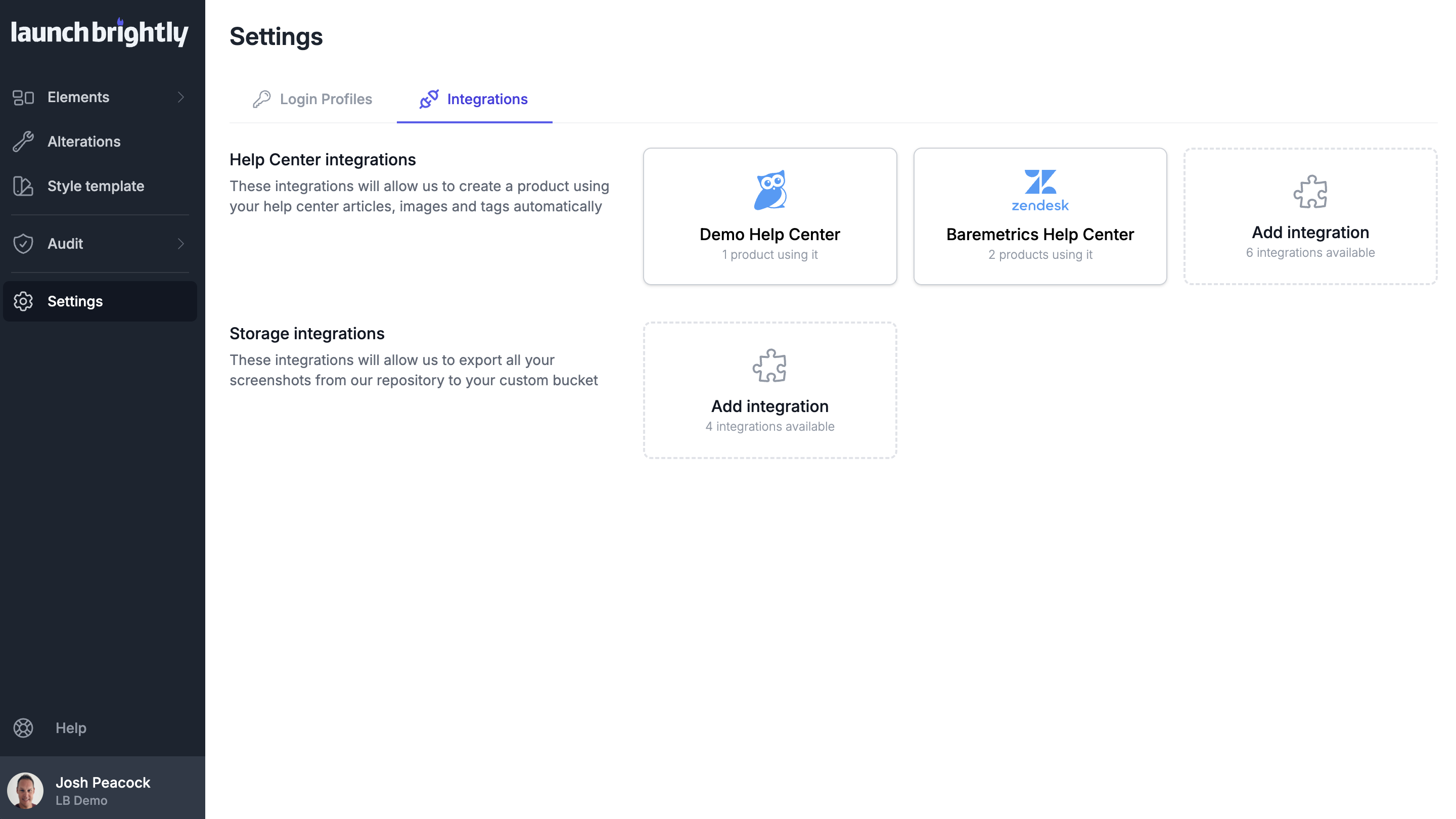
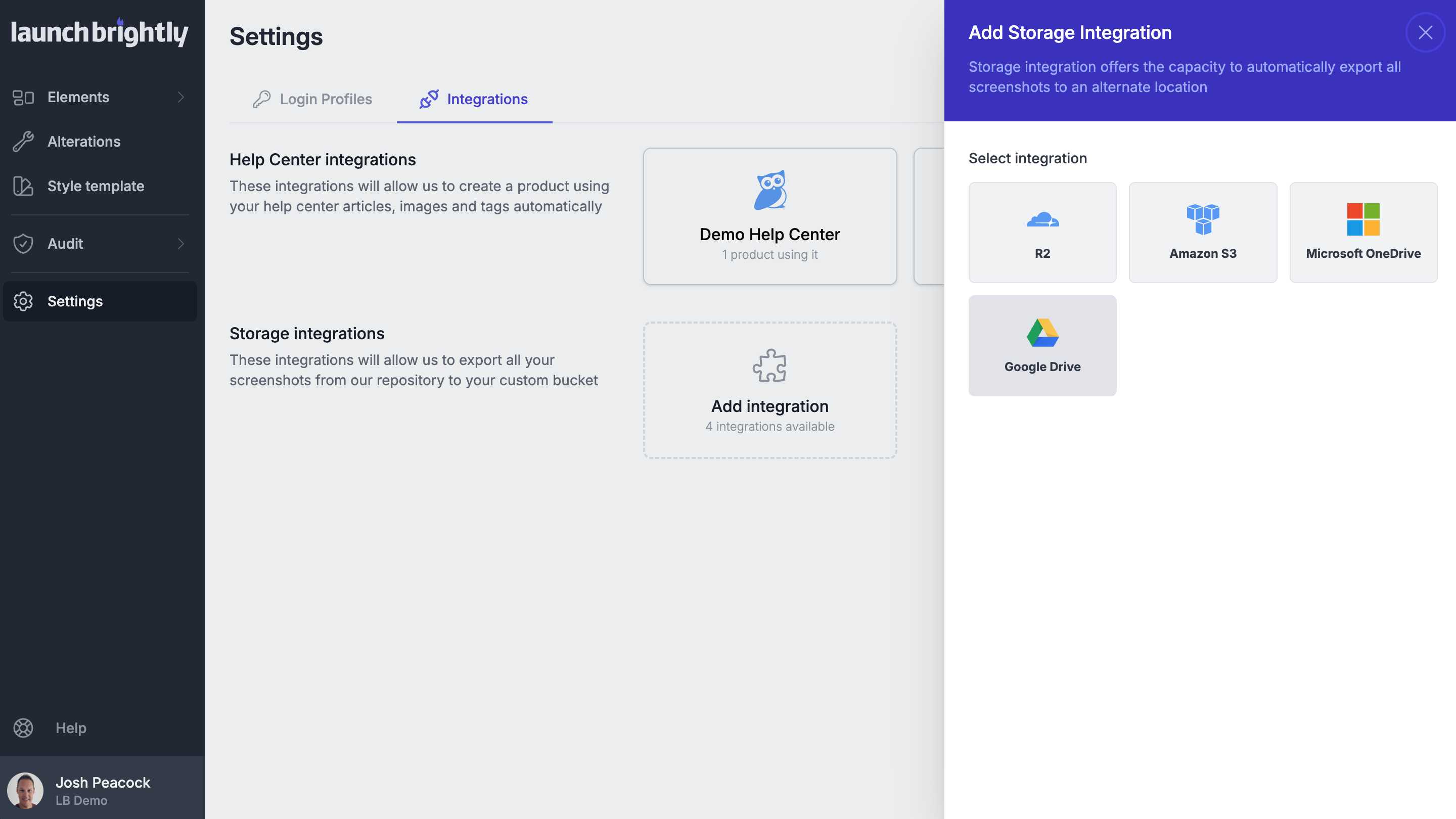
From the open sidebar, select Google Drive from the list of available storage integrations.
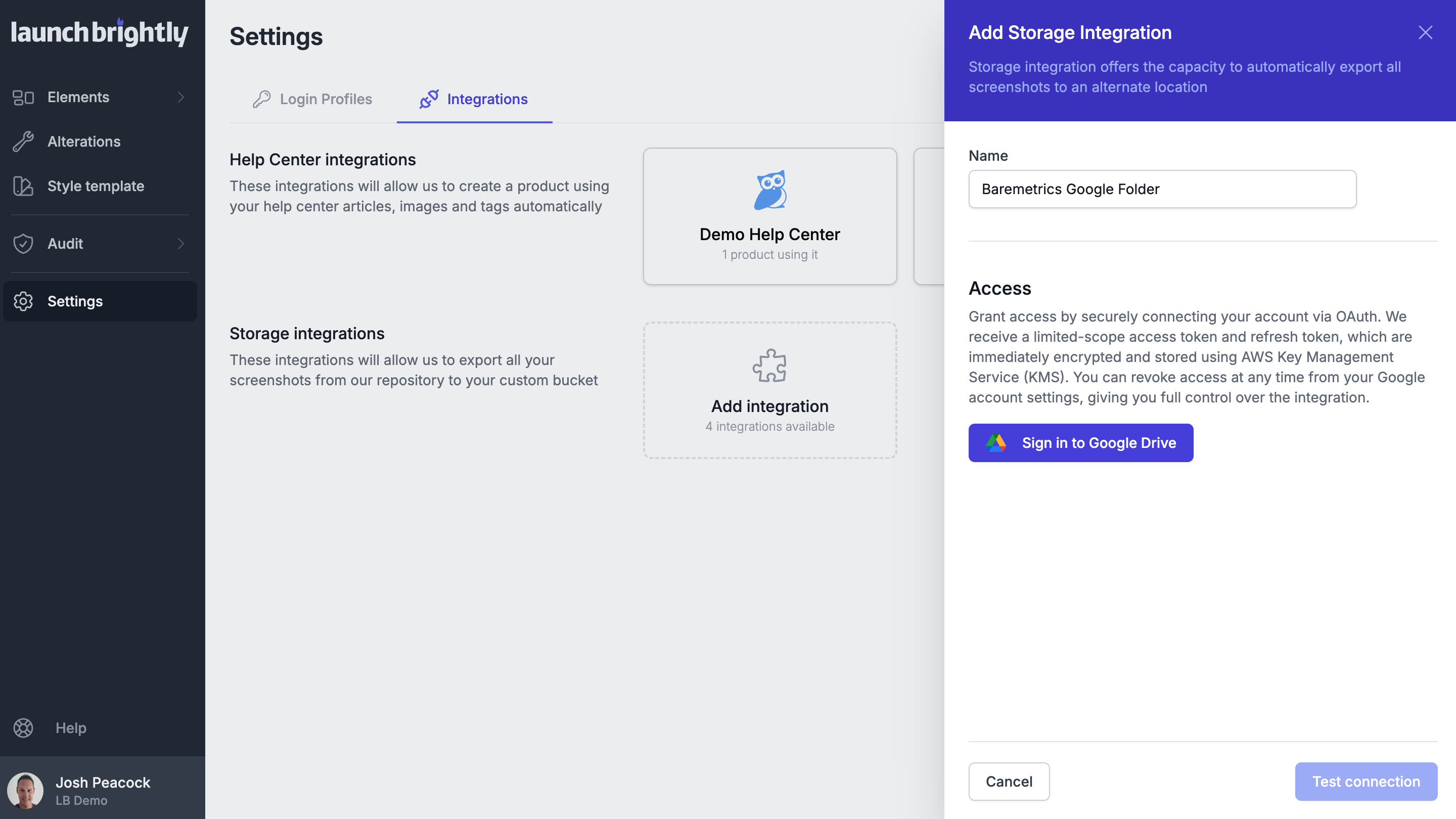
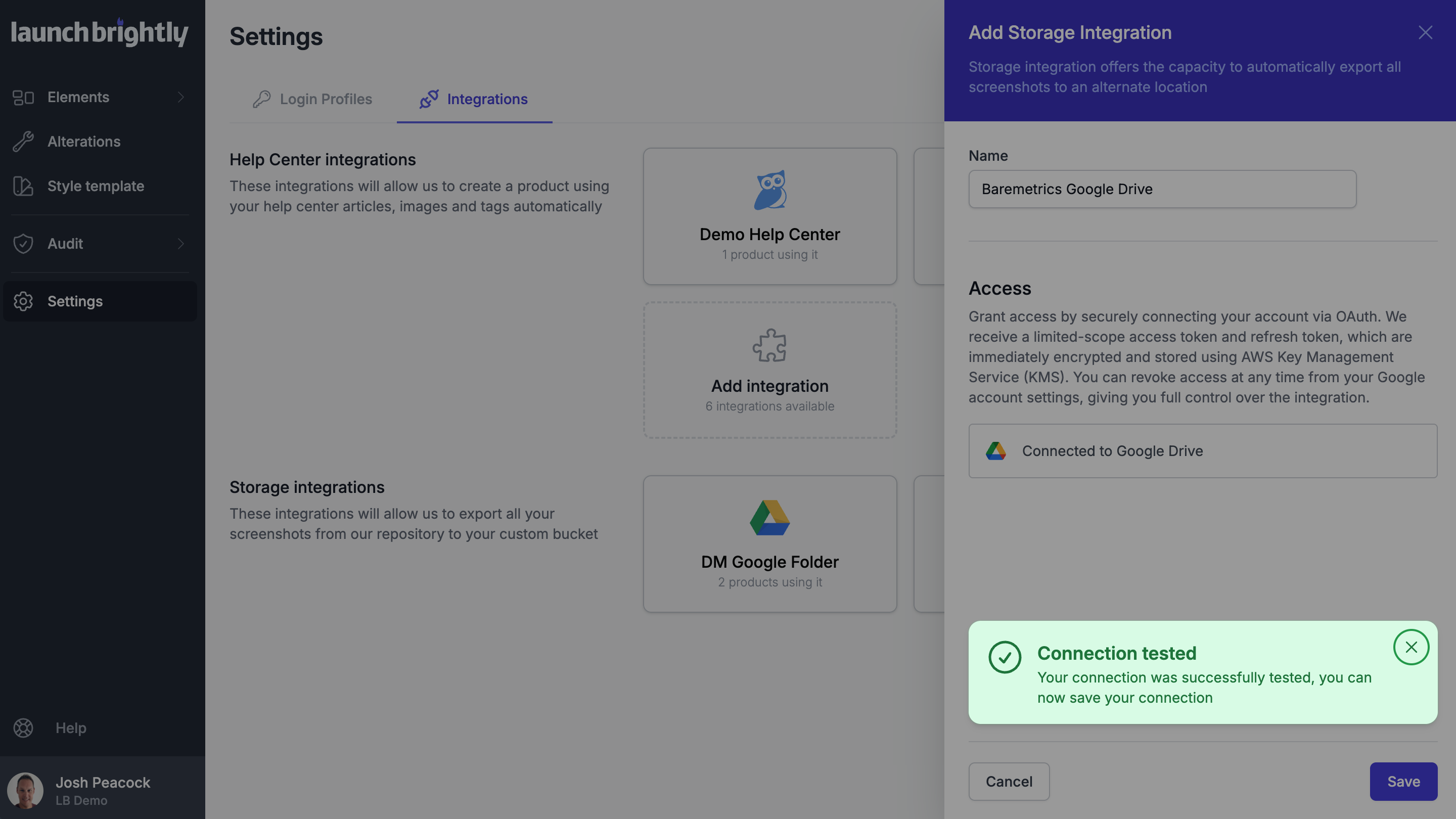
Add a Name for the integration, the click Sign in to Google Drive to authenticate via OAuth.
Note
We use a limited-scope access token — encrypted and stored with AWS KMS — so you can revoke access at any time from your Google account settings.
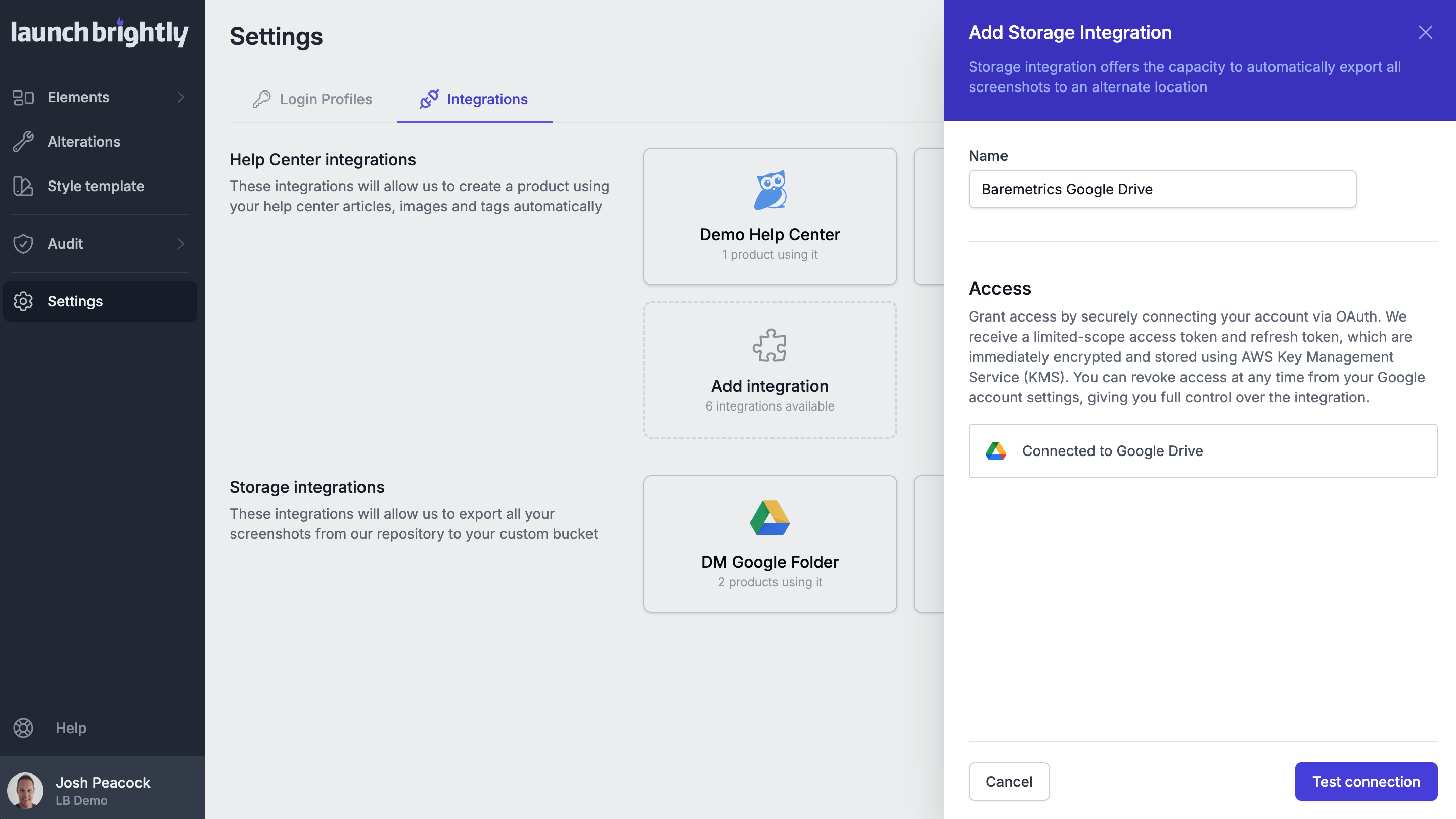
Click Test connection to confirm everything is set up correctly. You'll see a "Connection tested" confirmation when you're good to go.
Where do exported screenshots live?
Once connected, exported screenshots are saved to your Google Drive using this folder structure:
My Drive / launchbrightly / [your team name] / [product name] / mode-screenshot-filename.png
Screenshots are saved under the same filename every time, so any links you share will always serve the most current version — no re-uploading needed.
Can I choose a specific location for the folder?
Not yet — currently the launchbrightly folder is created at the root of your Google Drive. This is intentional: to keep our OAuth scope as narrow as possible, we only request access to the folder we manage, and controlling the save location typically requires broader folder-browsing permissions.
That said, you can still make your screenshots available wherever your team expects to find them using a Google Drive shortcut:
- Right-click the root
launchbrightlyfolder in your My Drive and select Organize > Add shortcut - Choose the shared drive where you'd like the shortcut to live (e.g. "Sales & Marketing")
- Anyone with access to that shared drive can now browse the screenshots directly from there
The shortcut looks and behaves just like a regular folder — most folks wouldn't even notice it doesn't live there natively. You can add it to as many shared drives as you need, and since you retain full ownership, you can set it to view-only to make sure nothing gets accidentally moved or deleted.