

How to set up a Help Scout integration
Setting up a Help Scout integration is easy!
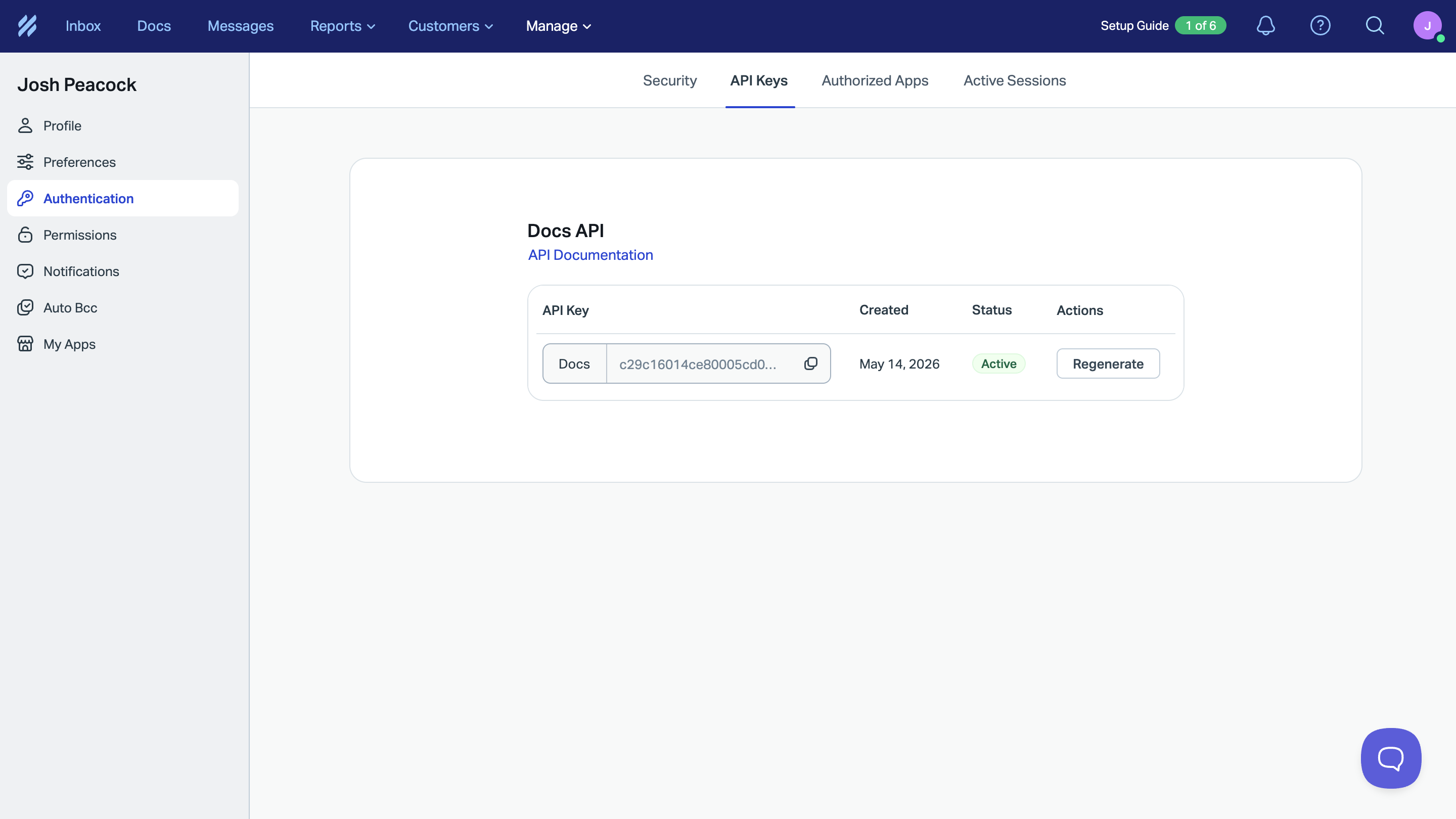
To do this you will first need to generate a Docs API Key in Help Scout to establish the connection with LaunchBrightly. You can find detailed instructions from Help Scout's developer documentation for Docs, as well as a summary below:
- Click the profile icon in the top right of your Help Scout account
- Select Your Profile
- Click Authentication in the left-hand menu
- Select the API Keys tab
- Copy your Docs API Key
Note
If you don't see an Docs API Key in your profile, you haven't been granted the "Docs: Create new, edit settings & Collections" permission. Contact your Help Scout Account Owner or Administrator to request access.
Once you have copied your API Key, you can set up your Help Scout integration from the Settings page in LaunchBrightly:
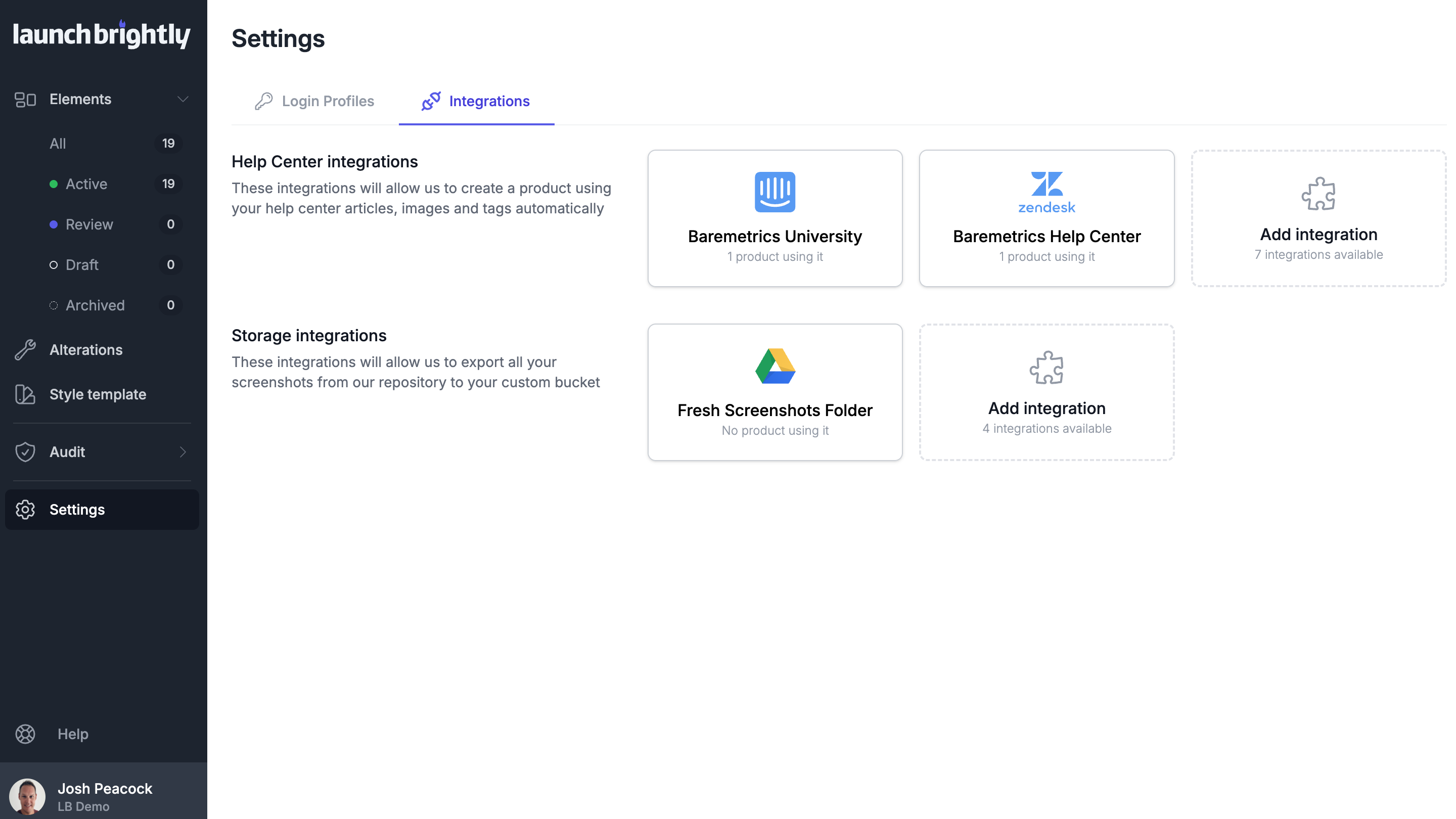
Select Add integration
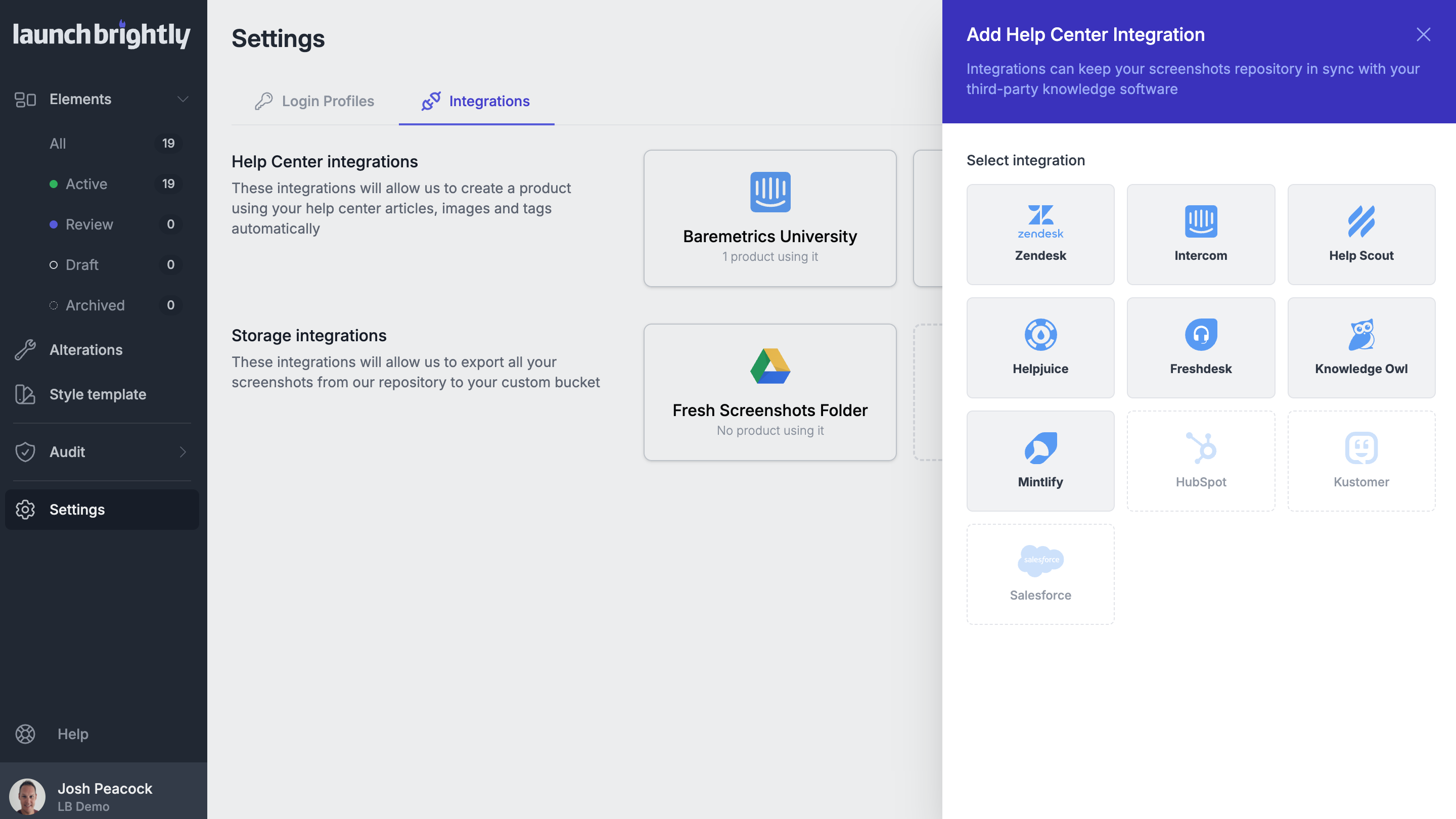
Select Help Scout
Add a Name for the integration and paste in your API Key
Select Test connection to confirm the details are correct
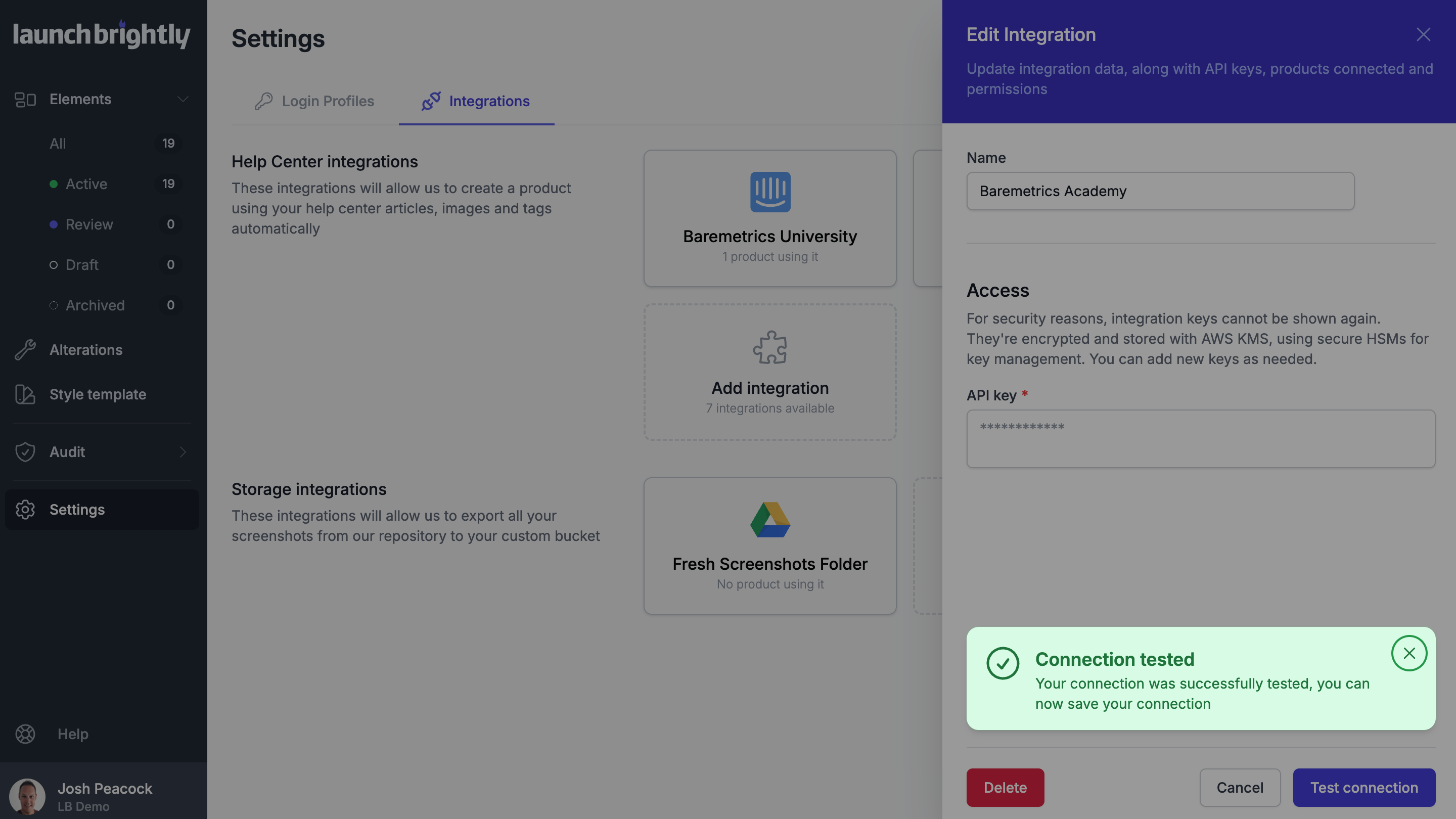
Click Save
And you're all set!
Note
All API keys are immediately encrypted and stored using AWS Key Management Service (KMS), which leverages hardened hardware security modules (HSMs) to protect and manage cryptographic keys.