

Live linking using a screenshot URL or populated <IMG> tag
Rather than using the screenshot URL above and writing the HTML yourself, the Embed option provides you with a fully populated <IMG> tag for each of your screenshots that you can embed directly into your help center.
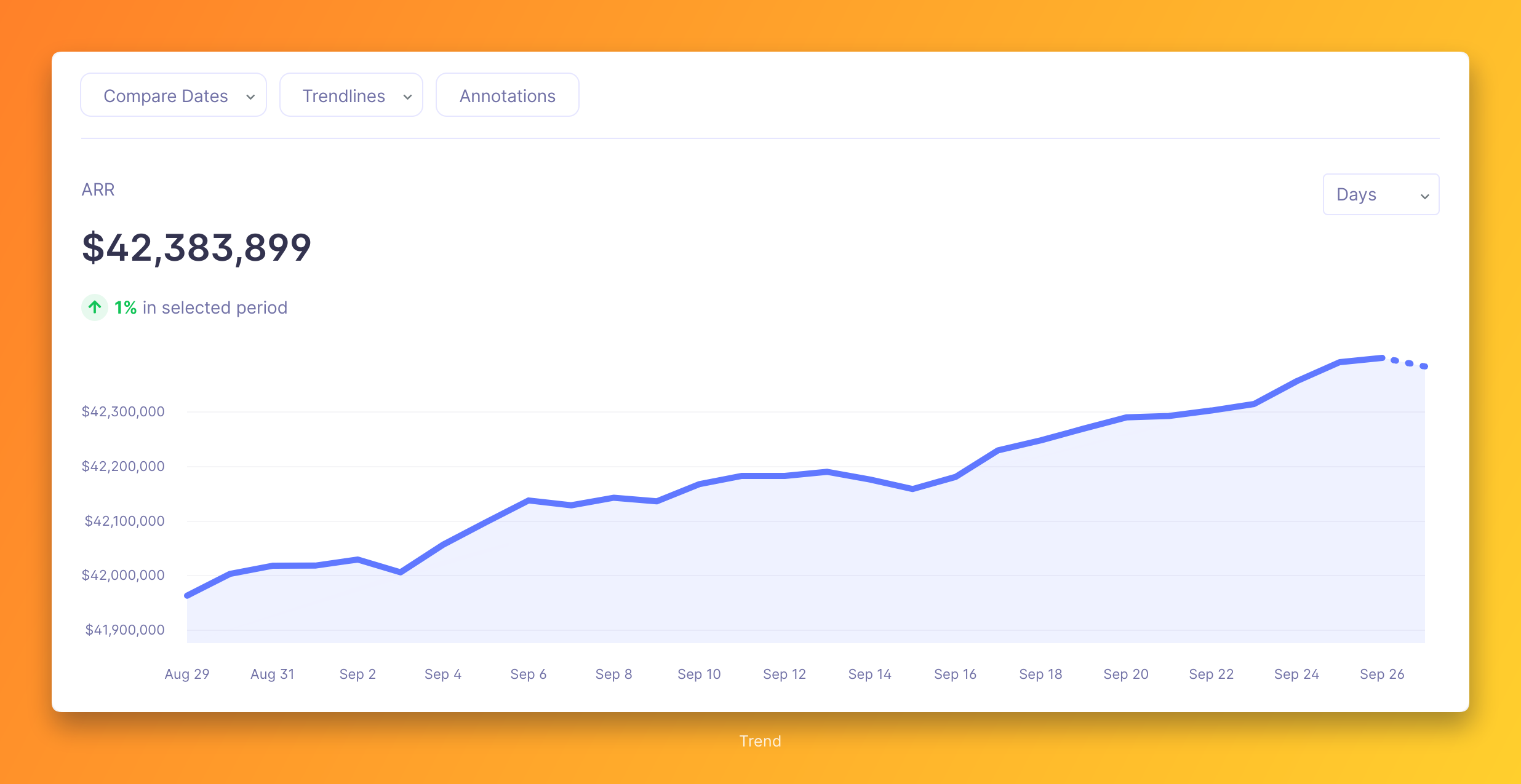
To embed a fully populated <IMG> tag for you screenshot directly into your help center navigate to the Embed page in your LaunchBrightly console and follow the below steps:
- Select the screenshot you want to embed in your help center from the dropdown
- Copy the Embed Code provided
- Paste the Embed Code directly into your help center article where you want the screenshot to be placed
Tip: Linking to a screenshot versus uploading a screenshot
We’ve been trained over the years to upload static product images to our Marketing and Support systems using things like drag-and-drop or file explorer. This may serve an immediate need, but it means we are now stuck with a static product image that will slowly grow outdated as inevitable product updates occur. Embedding a link to your screenshots allows you to move beyond static images, and creates a live link back to our automated screenshot platform. Your product images can now be updated automatically and without the need to manually drag-and-drop new screenshots into a help center article every time a product update is made.