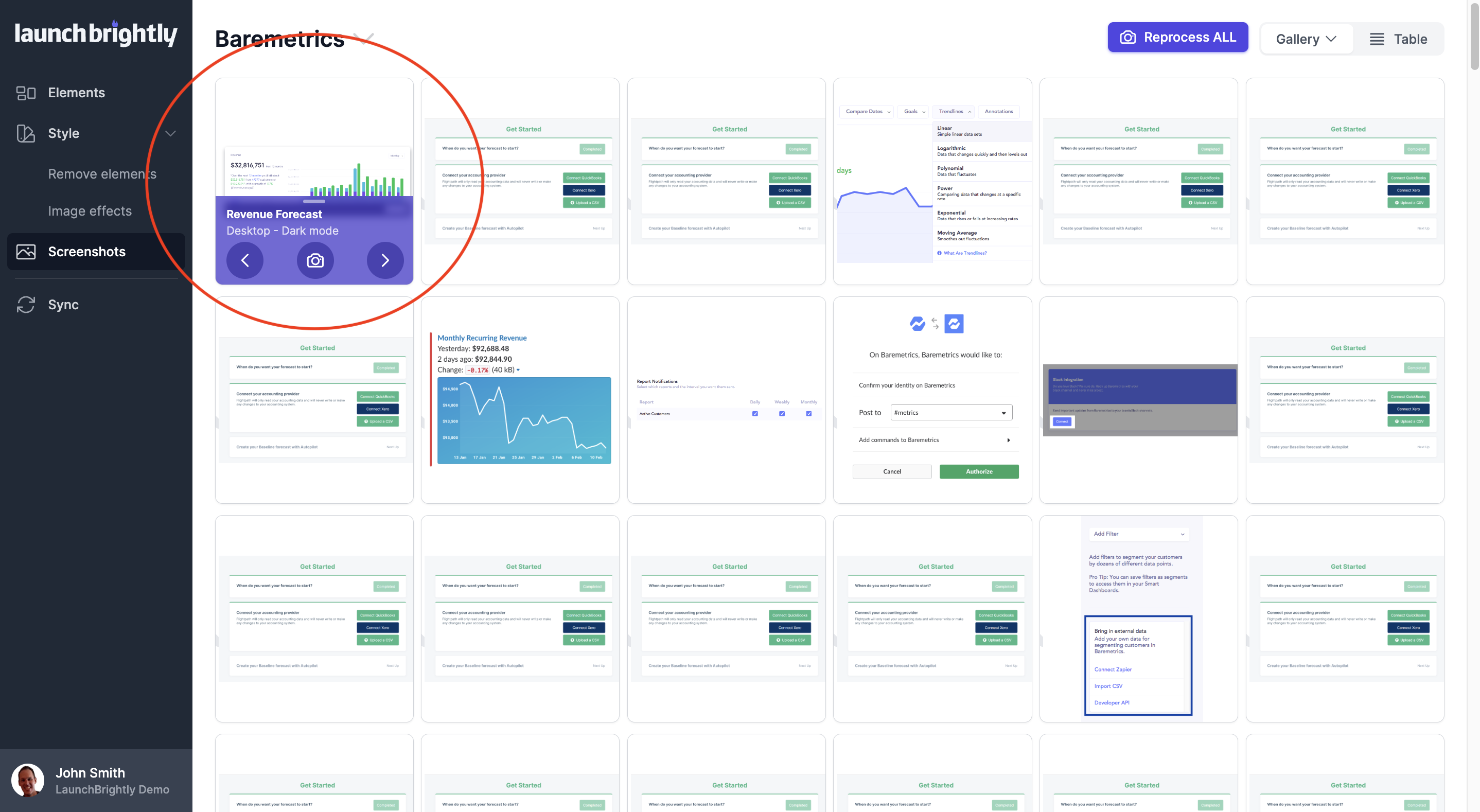
Run the screenshot process to generate screenshots for newly set up Product Elements
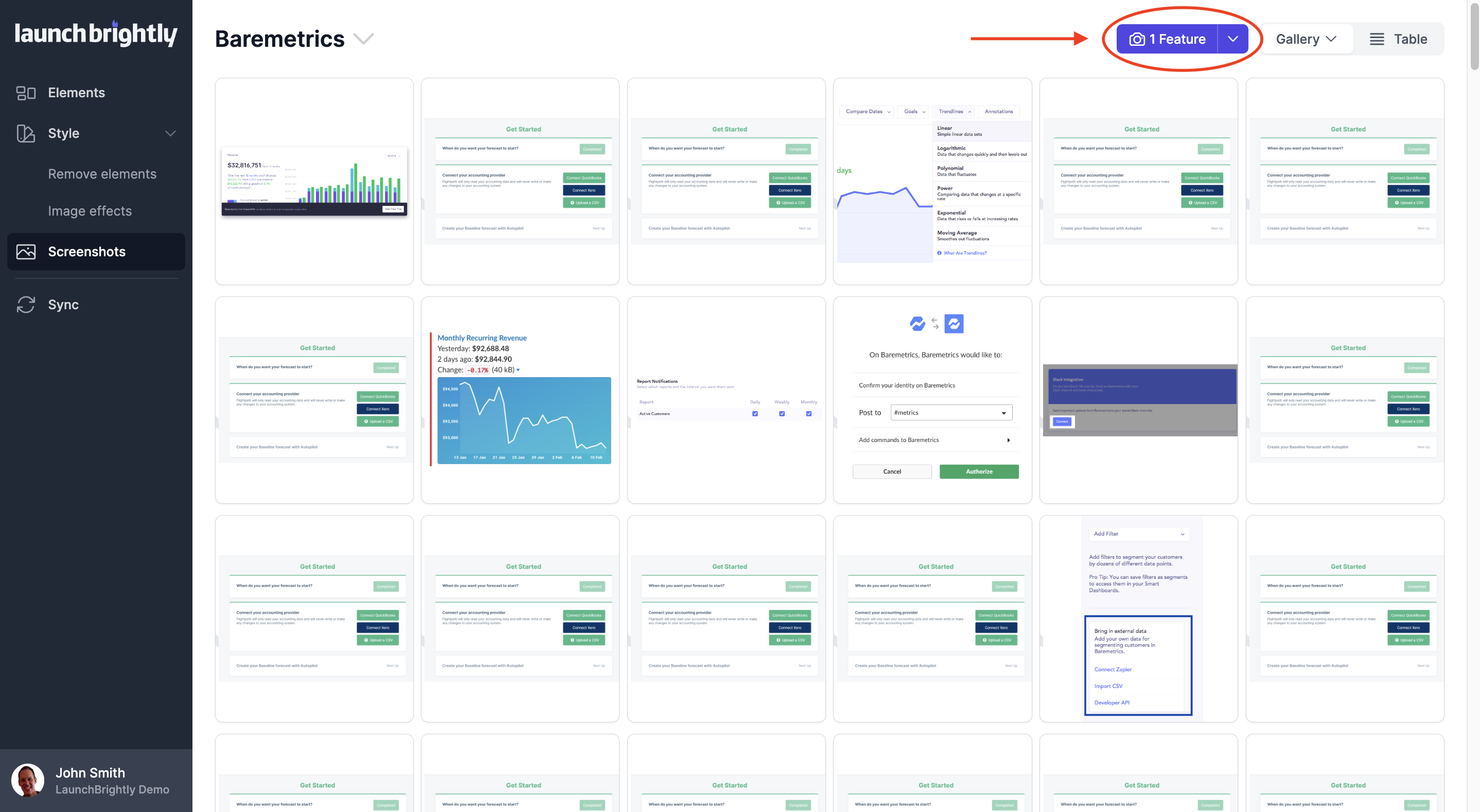
From the Screenshots page on your LaunchBrightly console use the camera icon in the top right-hand corner to start generating your screenshots, and see the status of each screenshot being fetched.
For each of your Product Elements you will be able to see the different screenshot modes you have set up (e.g. desktop and mobile), the imported screenshots if you ran the help center import, and a copy of the RAW screenshots along with your styled versions. You can use the arrows in the bottom panel of your screenshot to toggle between the different versions.