

How to set up an Intercom integration
Setting up an Intercom integration is easy!
The Intercom integration works by connecting LaunchBrightly to your Intercom workspace via OAuth. This allows LaunchBrightly to automatically keep your product screenshots in sync with your Intercom Help Center articles.
Note
The person completing this authorization must be an Administrator or Account Owner in Intercom. Intercom restricts OAuth access to these roles to ensure only authorized individuals can grant external tools access to their workspace.
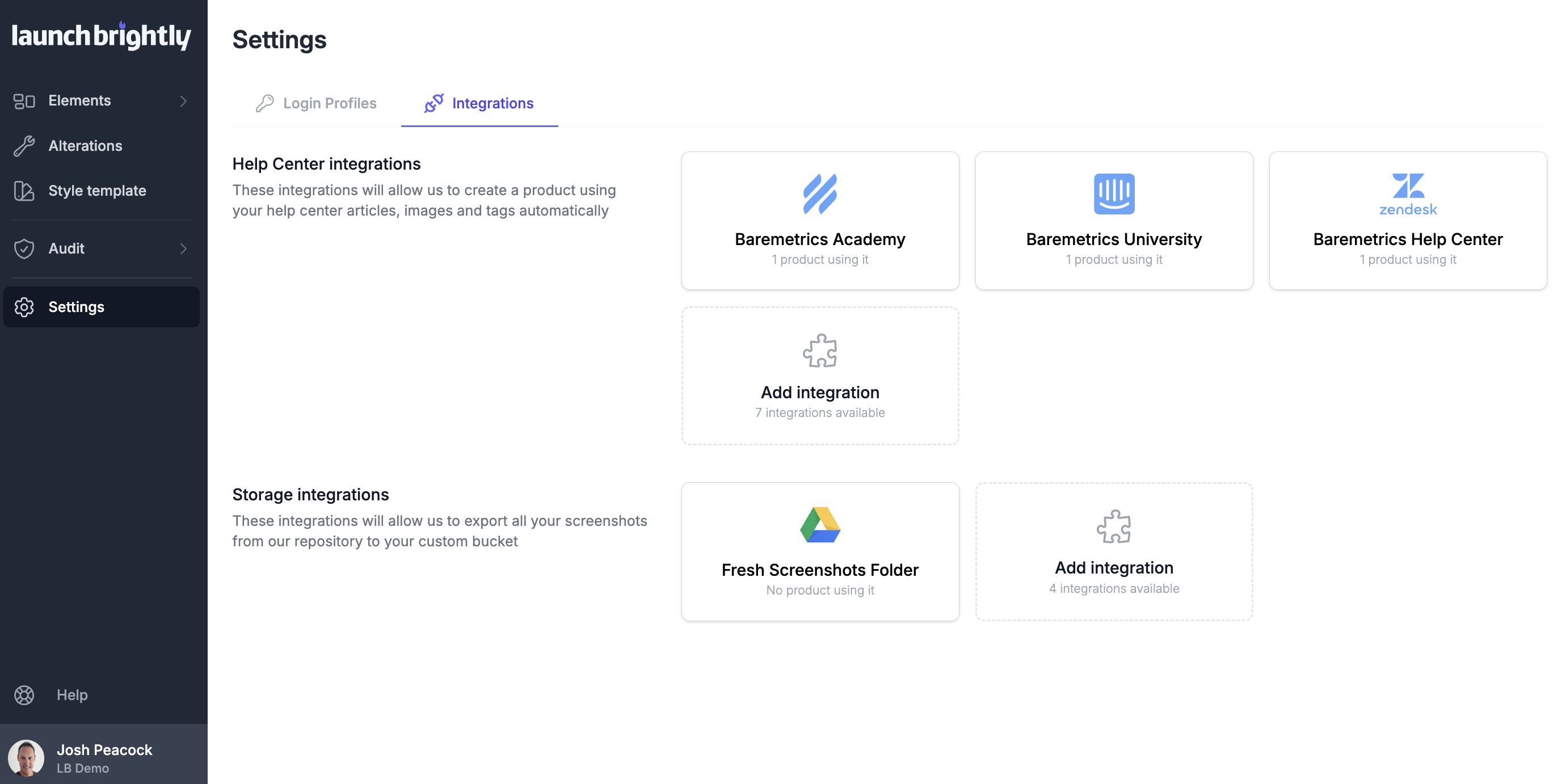
To set up the integration, navigate to the Settings page in LaunchBrightly:
Select Add integration
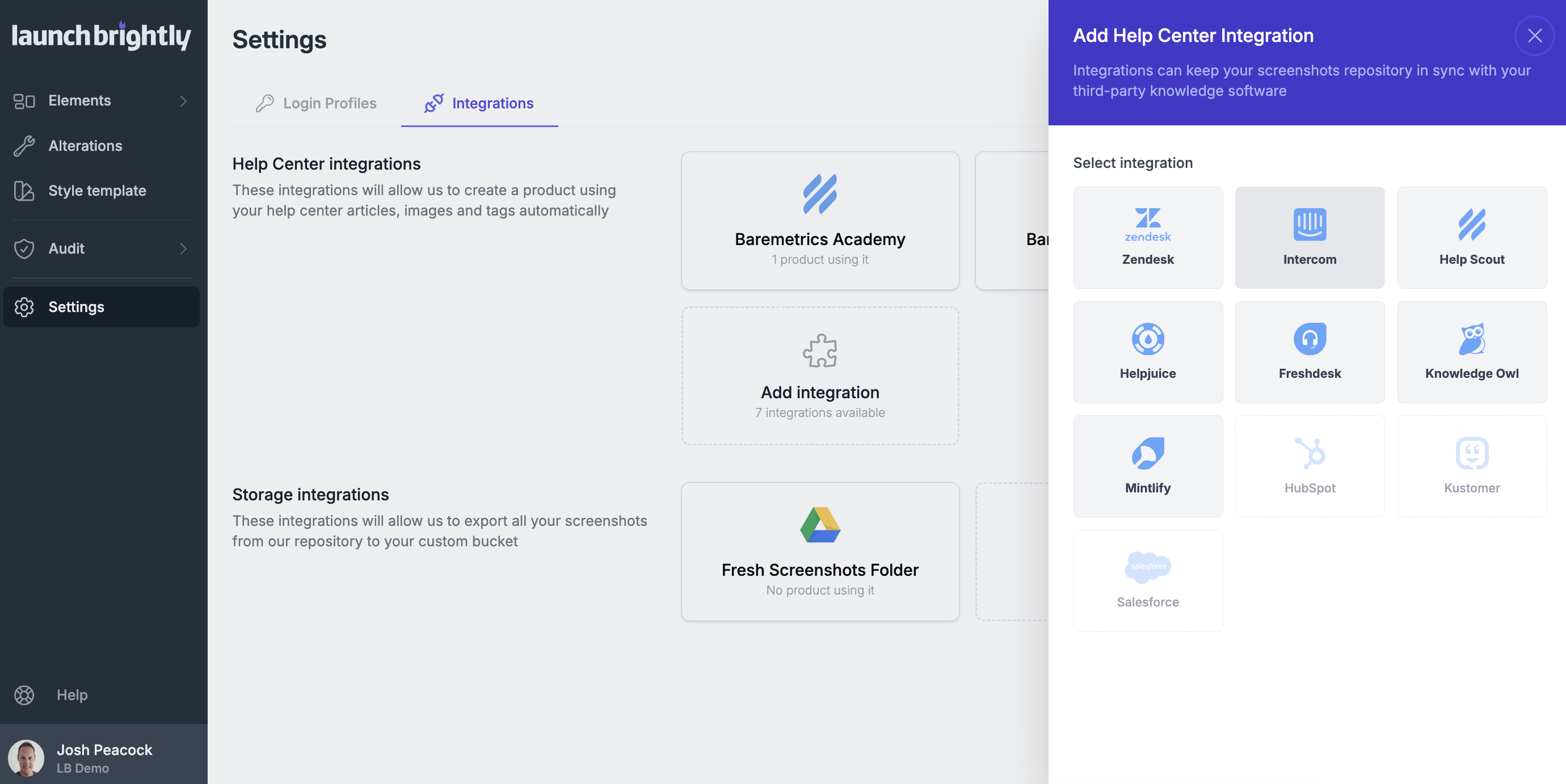
Select Intercom
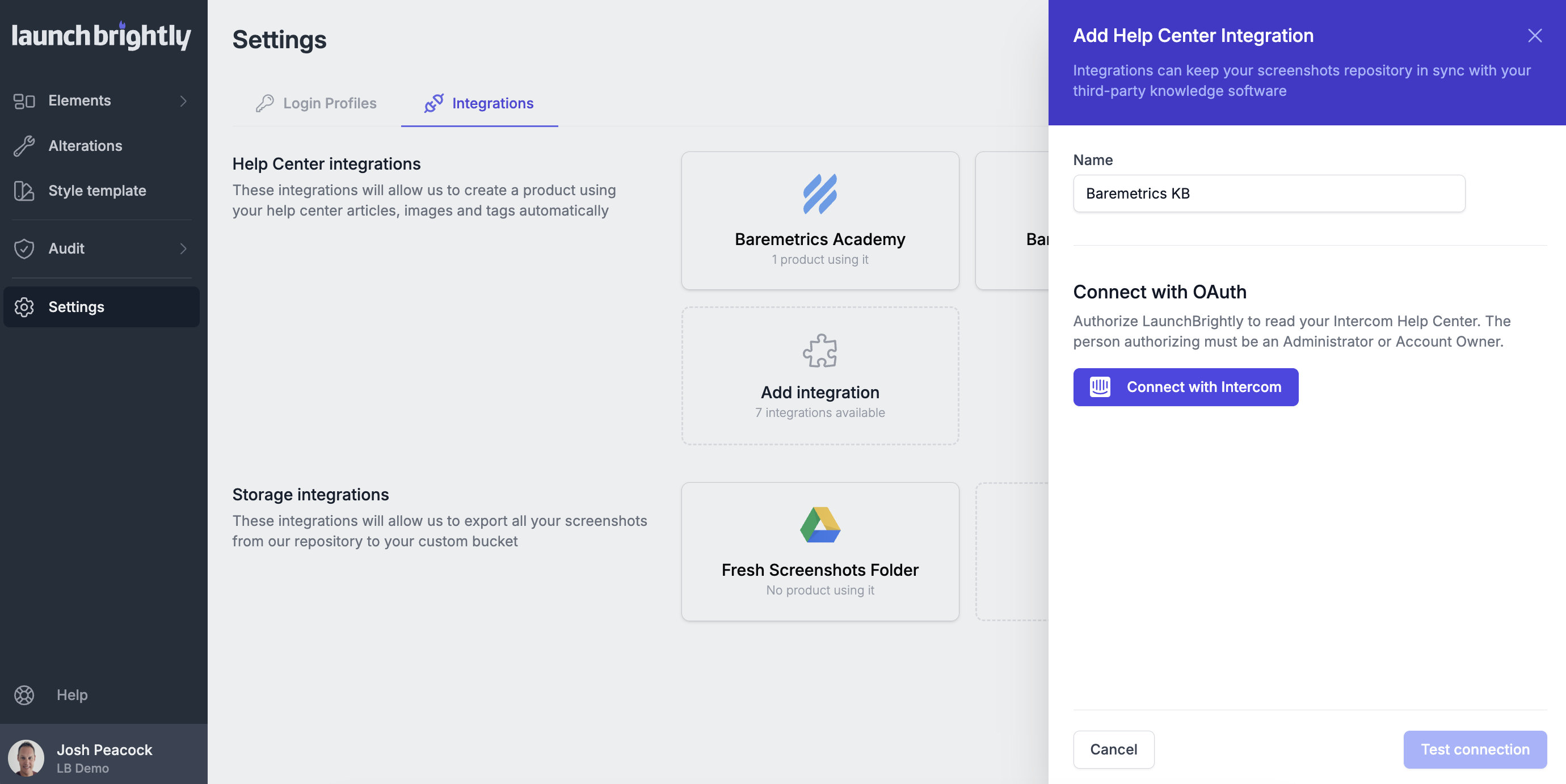
Add a Name for the integration
Select Connect with Intercom (which will redirect you to Intercom, where you'll authorize LaunchBrightly to access your workspace)
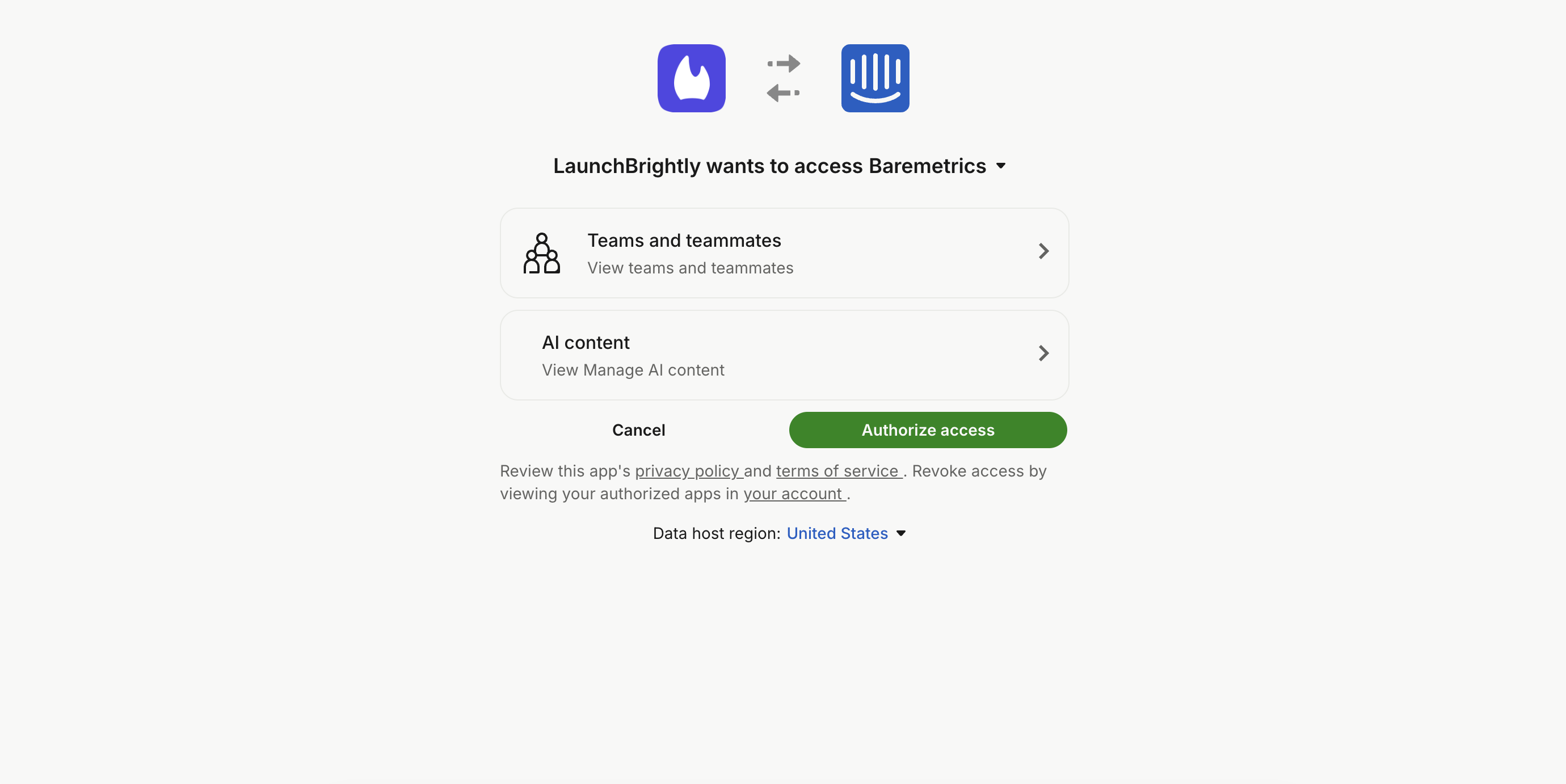
On the Intercom authorization screen, confirm the workspace shown matches the one you want to connect and select Authorize access (which will automatically redirect you back to LaunchBrightly)
Back in LaunchBrightly, select Test connection to confirm your integration is successfully connected
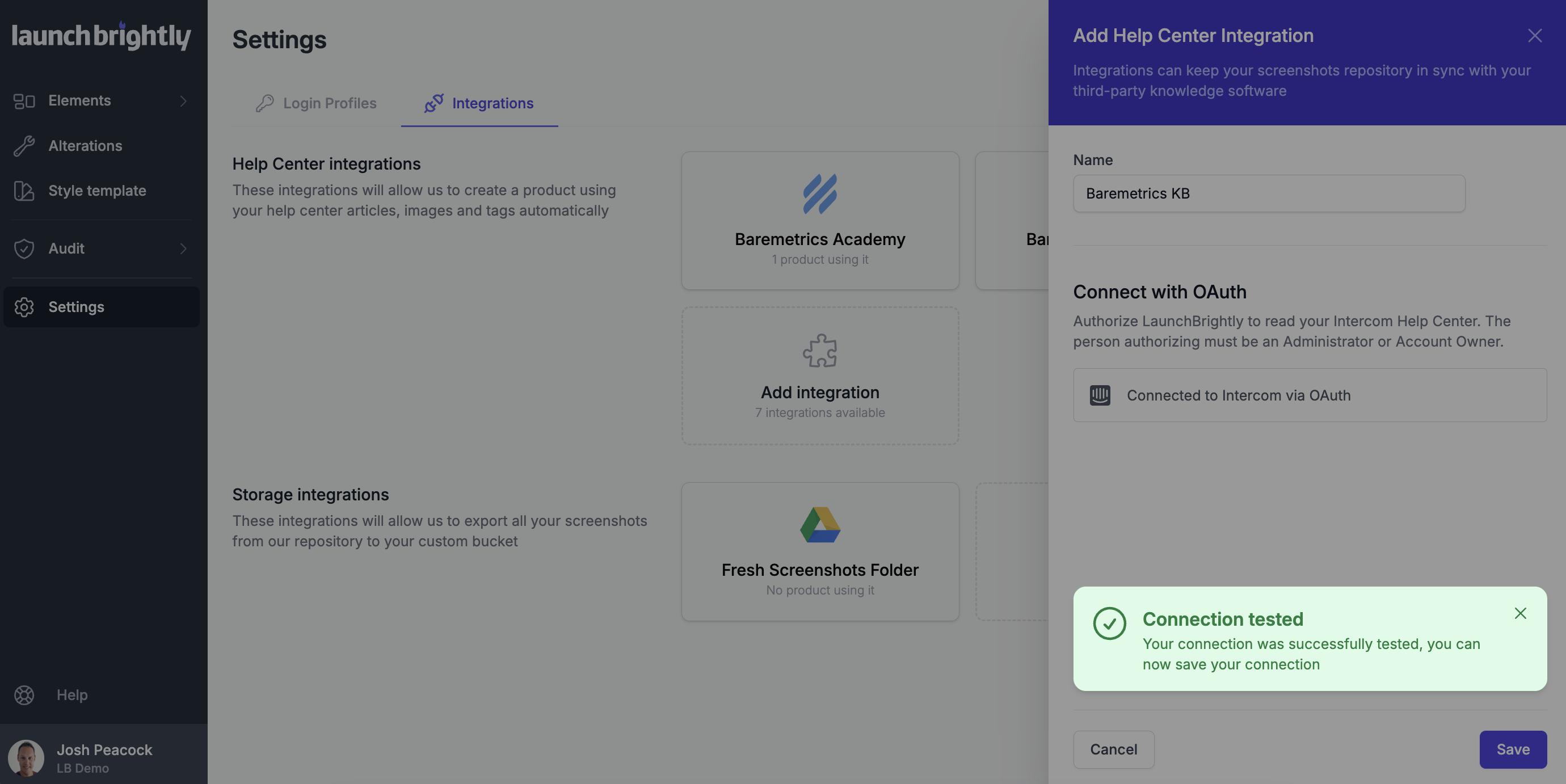
You're all set!
About the permissions requested
LaunchBrightly follows a principle of least privilege and only requests the minimum permissions required to automate screenshots within your Intercom Help Center.
What we use:
- Read articles — to analyze help articles and identify images that can be managed and automated by LaunchBrightly.
- Write articles — to update help articles with the latest approved screenshots generated by LaunchBrightly.
LaunchBrightly does not access conversations, inboxes, customer messages, tickets, contacts, or other customer data. Access is limited to the Help Center content required to automate and maintain product screenshots.
Why does the authorization screen mention "Teams and teammates" and "AI Content"?
Intercom currently displays some permissions using broader labels than the underlying API permissions being requested.
- Teams and teammates — this permission is only used during installation to identify the authenticated workspace and user.
- AI Content — this is how Intercom currently categorizes Help Center article permissions in the OAuth authorization screen. While the label may sound broad, LaunchBrightly only uses the underlying article permissions to read and update help article content. We do not access or manage any other AI-related features or content within your Intercom workspace.